Brevo Integration
Automatically sync contest entrants to your Brevo lists. When someone enters your Promotion, they're added to your subscriber list instantly.
Note: Brevo was formerly known as Sendinblue. If you're migrating from Sendinblue, your existing API keys and lists will continue to work with this integration.
What You'll Need
Before connecting, you'll need your API key and a list to sync subscribers to:
API Key
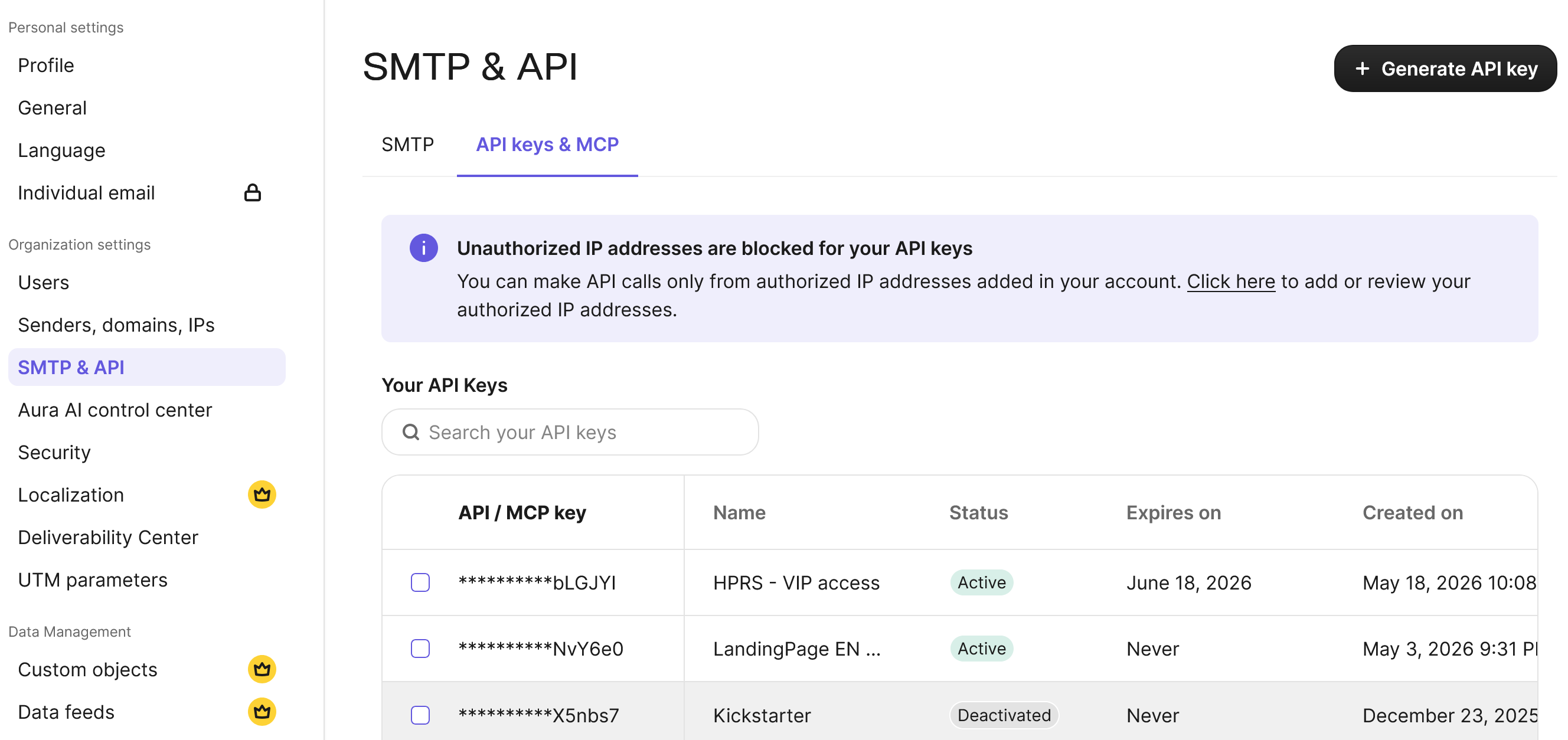
Log into Brevo → Settings (gear icon) → SMTP & API → API Keys. Click "Generate a new API key", give it a name like "HPRS Integration" and copy the key immediately (it won't be shown again).
List ID
Go to Contacts → Lists → click on your list. The List ID is in the URL: app.brevo.com/contacts/lists/YOUR_LIST_ID/contacts
Connecting to Your Promotion
Follow these steps to connect Brevo to your Promotion:
Open your Promotion in the HPRS dashboard
Go to the Post Capture tab
Click "Connect Brevo"
Enter your API key
Select which list to sync subscribers to (the list must already exist in Brevo)
Save your settings
Set it and forget it: You only need to connect Brevo once per contest. Your connection is securely stored and will automatically sync new entrants to your selected list. If you need to change the list later, simply disconnect and reconnect with the new selection.
Testing Your Integration
To verify your Brevo connection is working correctly:
Create a test contest with Brevo connected to an existing list
Enter the contest yourself using a test email address
Check your Brevo contacts - the subscriber should appear within minutes
Verify the custom attributes (SOURCE, CONTEST_ID, SIGNUP_DATE) are populated
What Happens When Someone Enters
When a participant submits their email to your Promotion:
- They're instantly added to your selected Brevo list
- Their name and email are synced automatically
- Custom attributes track their source and contest entry date
- If they're already subscribed, their record is updated (no duplicates)
Using Lists Effectively
Brevo uses lists to organize subscribers. Subscribers can belong to multiple lists:
- Create a dedicated list for each contest (e.g., "Summer Giveaway 2024")
- Subscribers who enter multiple contests will be in multiple lists
- Use lists to send targeted campaigns to specific contest participants
- Filter your contact list by list membership to see who came from each contest
Double Opt-in
For GDPR compliance with double opt-in, Brevo provides a separate Double Opt-In confirmation endpoint. If you want contest entrants to confirm their subscription, set up a confirmation automation in Brevo that triggers when someone joins your Promotion list.
Custom Attributes
HPRS syncs the following data to Brevo:
FIRSTNAME
First name from contest entry
LASTNAME
Last name if provided
SOURCE
Marked as "contest" for HPRS entries
SIGNUP_DATE
When they entered the contest (YYYY-MM-DD format)
CONTEST_ID
Which contest they entered
Important: Brevo requires custom attributes to be UPPERCASE and must be pre-created in your Brevo account before data can be synced. Go to Contacts → Settings → Contact Attributes to create SOURCE, SIGNUP_DATE, and CONTEST_ID as TEXT attributes.
Tips for Best Results
- Create a new list for each contest to keep subscribers organized
- Set up a welcome automation that triggers when someone joins your Promotion list
- After your Promotion ends, create a campaign targeting just that list
- Use Brevo's segments to combine list membership with other criteria
- Pre-create all custom attributes before running your first contest
Troubleshooting
Subscribers not appearing?
Check that your API key is correct and hasn't been revoked. Try generating a new key and reconnecting.
API key not working?
Generate a fresh API key in Brevo under Settings → SMTP & API → API Keys. Make sure you copy the full key before closing the dialog.
List not found error?
Verify the list still exists in Brevo. If you renamed or deleted it, select a new list in HPRS.
Custom attributes not syncing?
Custom attributes must be created in Brevo first with UPPERCASE names. Go to Contacts → Settings → Contact Attributes to add new attributes before they can receive data.
Invalid parameter error?
This usually means a custom attribute doesn't exist in Brevo. Create the missing attributes (SOURCE, CONTEST_ID, SIGNUP_DATE) in your Brevo dashboard.
Names not appearing in contacts?
If the "Contact" column shows the email address instead of the subscriber's name, you need to create the FIRSTNAME and LASTNAME attributes in Brevo:
- Go to Contacts → Settings → Contact Attributes
- Click "Add a new attribute"
- Create FIRSTNAME (type: Text)
- Create LASTNAME (type: Text)
Note: Some Brevo accounts (especially non-English accounts) use different attribute names like PRENOM/NOM. You must create the English FIRSTNAME/LASTNAME attributes for HPRS to sync names correctly.